
After our OneStream Live Preview, it’s time for our Review! Since what OneStream Live does is something we can use directly here at MasterStack for our videos, our Review is also a demo of how it works and we’ll evaluate the platform as we upload our video, and consider the end result.
To recap from our OneStream Live Preview, the platform takes our prerecorded videos and streams them simultaneously and on schedule to a plethora of different services. The AppSumo deal allows up to two stacks and places us in one of two different plans, with two stacks being the better plan and not a simple “double the limits”.
That being said, we expect this out of OneStream Live: an easy to use platform that allows us to quickly fetch or upload our videos and schedule our streams to many services, without trouble or bugs.
All Aboard OneStream Live!
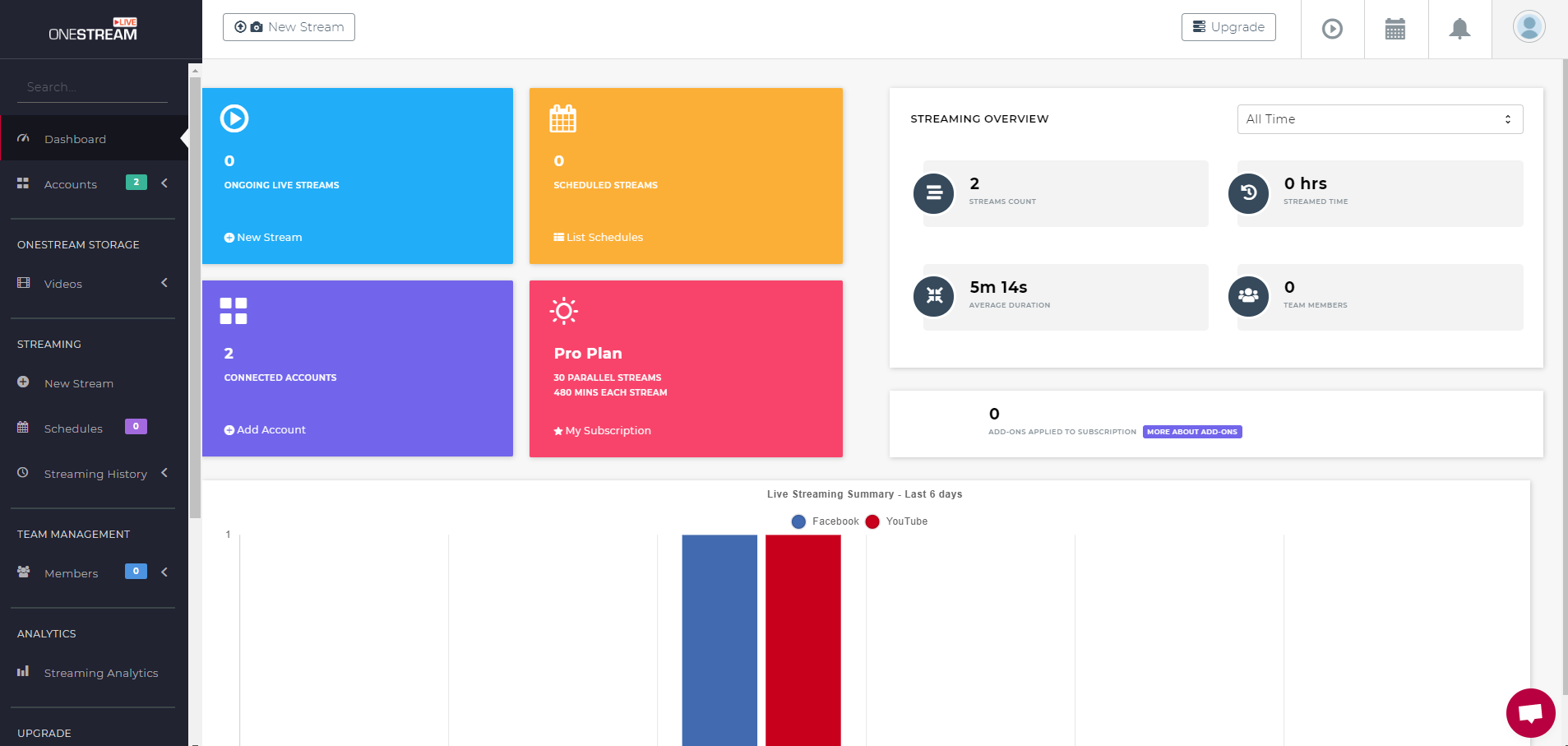
It’s a fairly easy to read UI, with colors that catch your attention and the left menu is very straightforward. No risk getting lost, while at the same time thanks to submenus there are a lot of functionalities packed in, without being messy.
At the top we have shortcuts, but we can reach those pages from the menus on the left anytime we want.
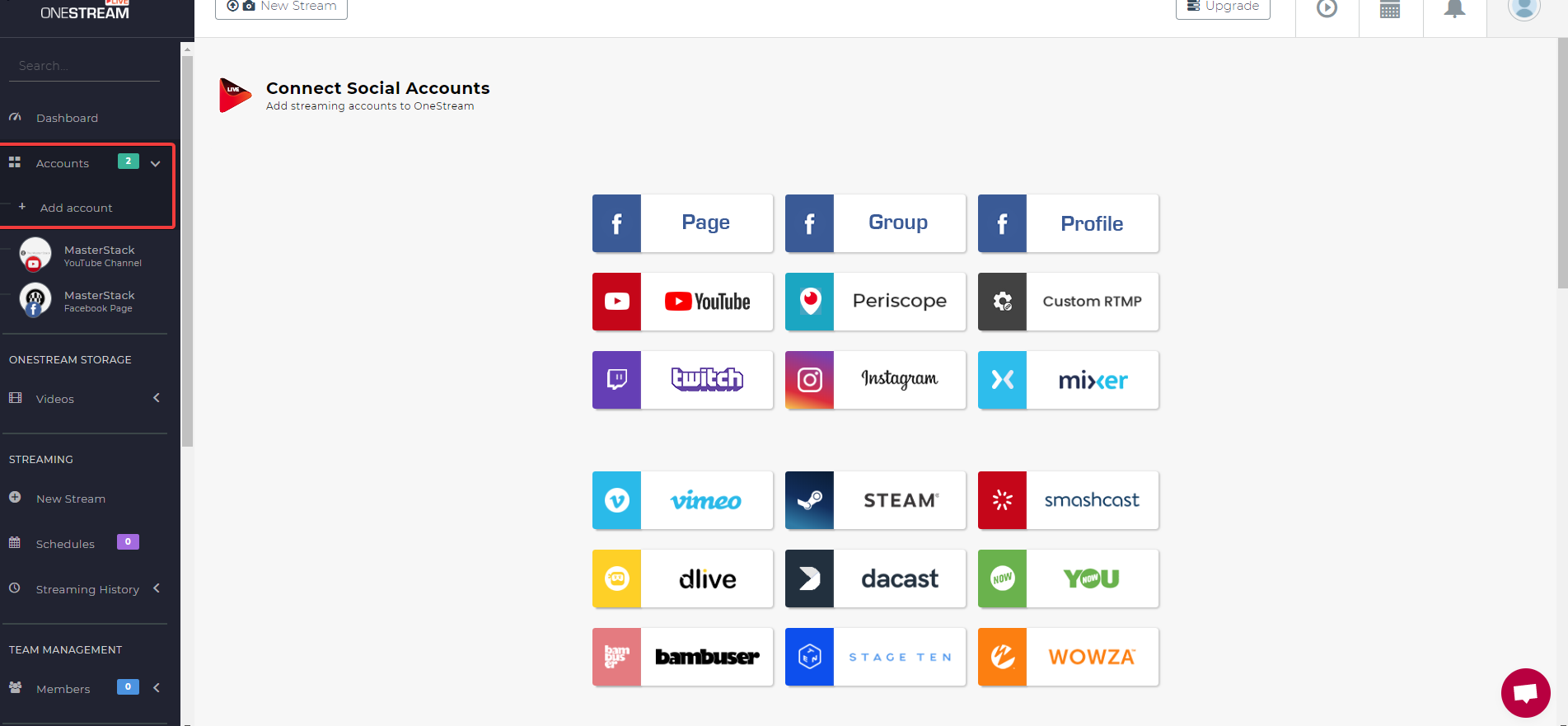
Connecting accounts is very quick and easy. However, each platform has its own quirks, so it is suggested to read the documentation if you are not sure how to proceed. It’s well written and explains most use cases.
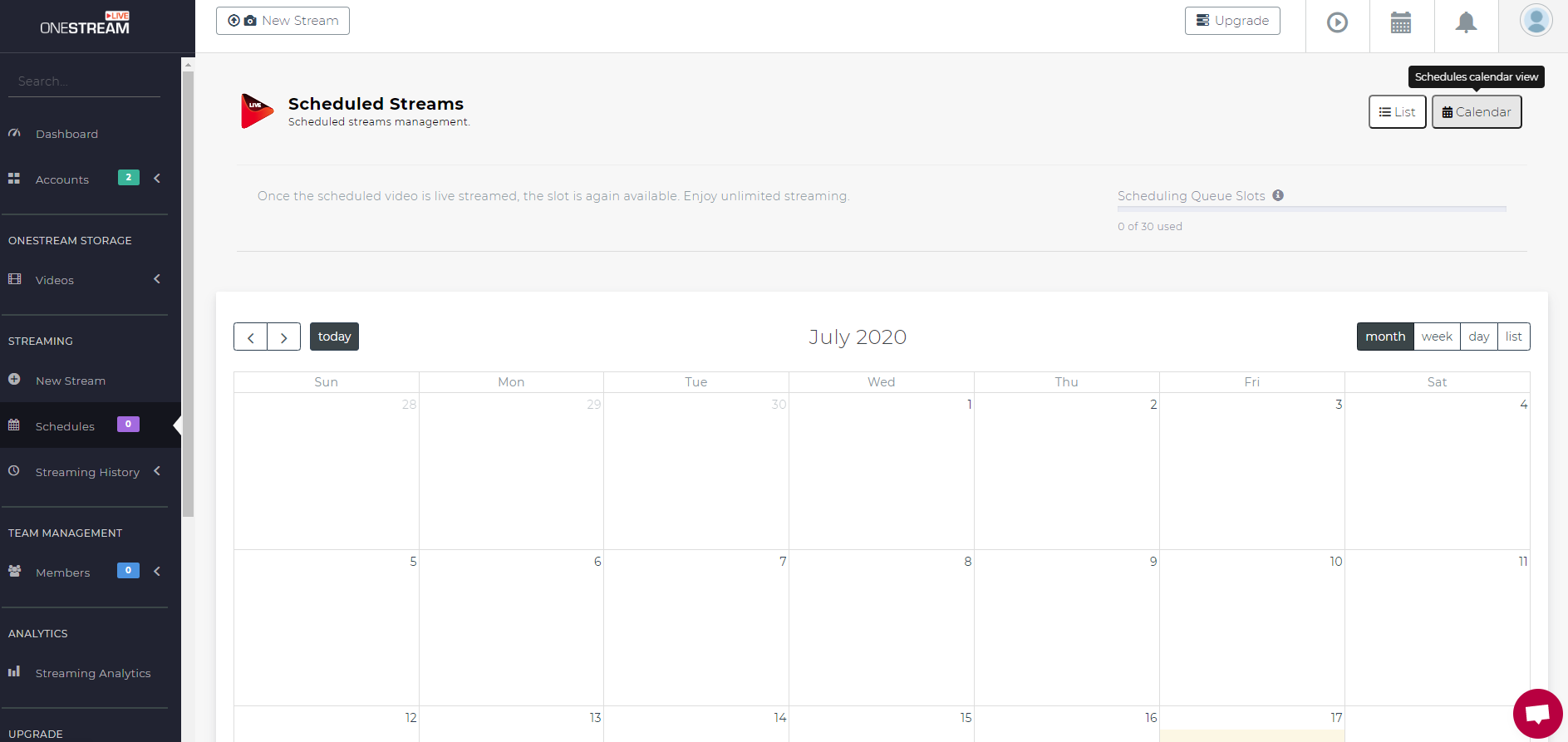
We can easily add many accounts per platform, so as to allow us to handle different brands or pages with different streams, all under one OneStream Live account. We can choose when we schedule which platform/account we want to schedule to.
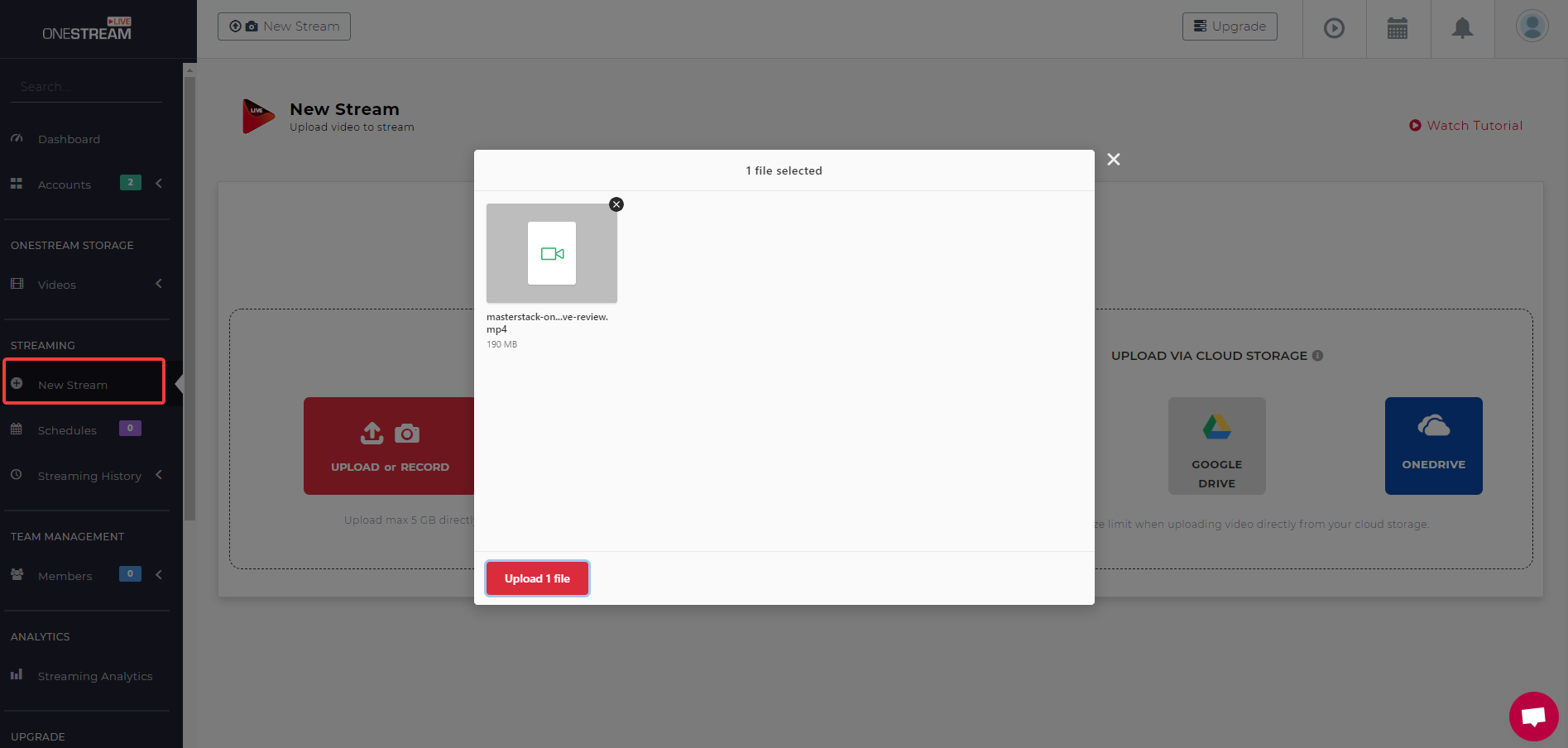
With the AppSumo deal we have a good amount of space, depending on whether we have 1 or 2 stacks, and we can always use an old video for a new stream, if we want to. We could also link to our cloud storage accounts (with more being integrated according to what we’ve read on their deal page), without any limits at all on that (they’d just fetch the video on the external account).

As you can see, for this review.. I’m uploading the review video! Once we upload the video itself, we can choose when to schedule it, if we want to notify about our stream and set title, description and all of that information.
In the initial video I did not know yet, but of course you can just go to Youtube 12+ hours after the livestream to edit your video with your tags and end credits, no issue at all!
That’s about it, once we set these informations we can schedule:
- When to stream (+ add notifications, optionally)
- Where to stream (among all the platforms we’ve added)
- Privacy, DVR, Delete-after-stream options
- Title and description
… and watch our results come in! The amount of possible tweaks are good, and it’s never in such amount as to be confusing or utterly unnecessary. Many are optional, and we can tweak them only if we choose to.
That’s it, we’re done!
OneStream Live Recap
We’ve used it a bit, we’ve checked out everything except its Analytics (it seems to be detailed enough, however we don’t really have enough data yet) and everything seems to check out splendidly.
OneStream Live may not be for everyone, but those that have use for it should really give it a try and we wholeheartedly recommend it, it’s definitely a good tool to add to our stack, for the time being. We look forward to see its roadmap further develop, and this is one of those tools that can be argued for and valued at their standard pricing, without even having to consider the AppSumo deal, which makes it all the more good.
[…] We’ve used it in the past to publish all our videos. Never had an issue, support was responsive, so this is a good tool for us. Check out our OneStream Live Preview and OneStream Live Review […]
Visitor Rating: 5 Stars